Introduction
In modern cloud architectures, real-time IoT data processing is one of the most common and powerful use cases. Devices continuously generate sensor data, telemetry, logs, and events that must be processed instantly and stored reliably.
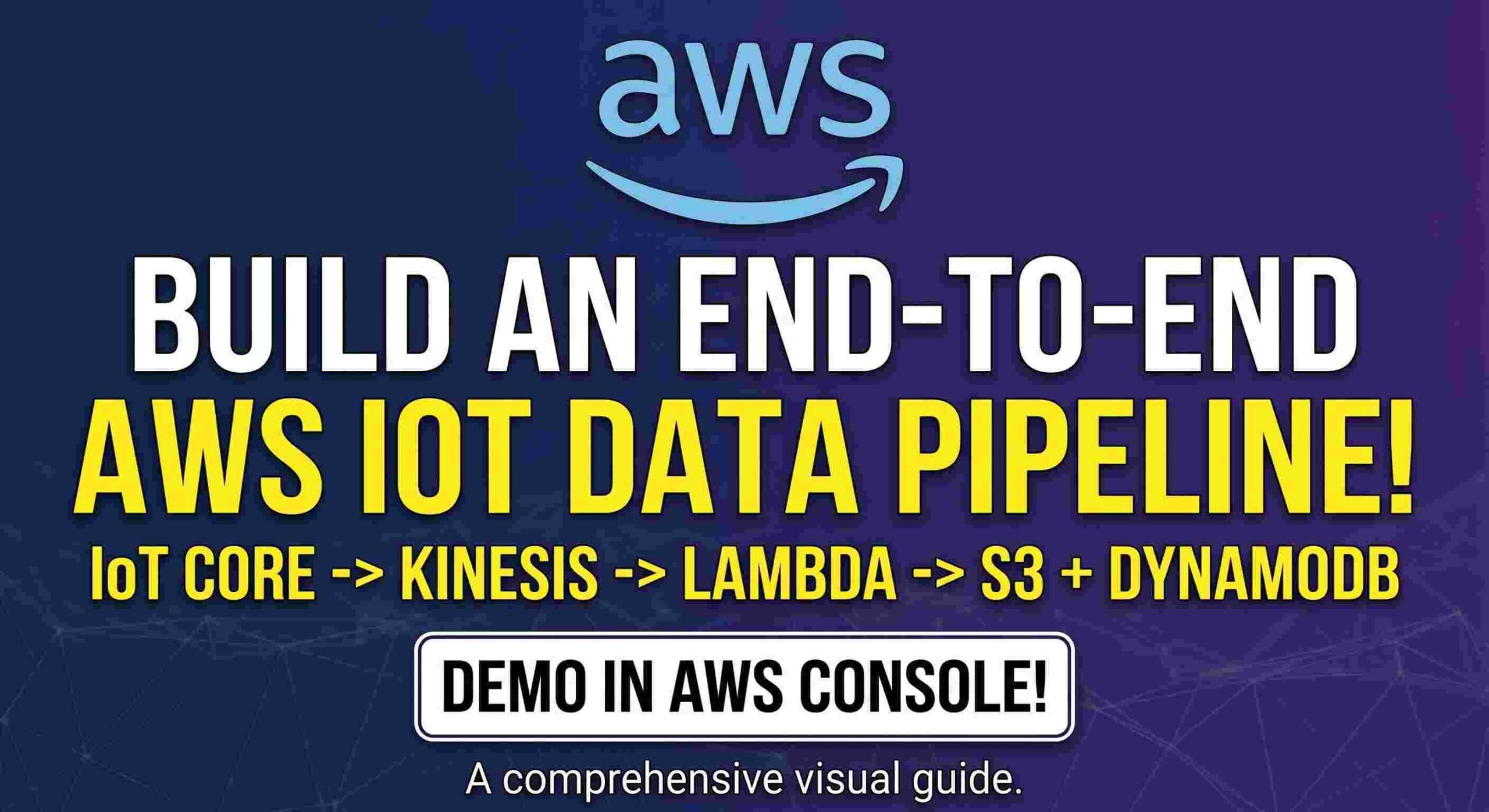
In this tutorial, we will build a complete serverless real-time IoT streaming pipeline using:
- Amazon Web Services IoT Core
- Amazon Web Services Kinesis Data Streams
- Amazon Web Services Lambda
- Amazon Web Services S3
- Amazon Web Services DynamoDB
The architecture will look like this:
IoT Core
   ↓
IoT Rule
   ↓
Kinesis Data Stream
   ↓
Lambda
  ↙      ↘
S3     DynamoDB
This setup is commonly used in:
- Smart devices
- Industrial IoT
- Vehicle telemetry
- Real-time analytics
- Sensor monitoring systems
Video Tutorial
What We Will Build
The flow works like this:
- IoT devices publish MQTT messages to AWS IoT Core
- IoT Rule captures the messages
- Messages are sent to Kinesis Data Stream
- Lambda consumes records from Kinesis
- Lambda stores:
- Raw data into S3
- Processed/indexed data into DynamoDB
AWS Services Used
| Service | Purpose |
|---|---|
| AWS IoT Core | Receive MQTT messages |
| Kinesis Data Streams | Real-time streaming buffer |
| AWS Lambda | Process streaming records |
| Amazon S3 | Store raw JSON payloads |
| DynamoDB | Store structured data |
Step 1 — Create S3 Bucket
Open: Amazon S3 Console
Create a bucket.
Example:
iot-raw-data-demo
This bucket will store raw JSON payloads received from IoT devices.
Step 2 — Create DynamoDB Table
Open: DynamoDB Console
Create a table:
| Setting | Value |
|---|---|
| Table Name | iot-data |
| Partition Key | deviceId |
| Sort Key | timestamp |
This table will store processed device data for quick querying.
Step 3 — Create Kinesis Data Stream
Open: Kinesis Service
Create a stream:
| Setting | Value |
|---|---|
| Stream Name | iot-stream |
| Capacity Mode | On-demand |
Kinesis acts as a scalable real-time streaming buffer between IoT Core and Lambda.
Step 4 — Create Lambda Function
Open: AWS Lambda Console
Create function:
| Setting | Value |
|---|---|
| Name | iot-kinesis-processor |
| Runtime | Node.js 20 + |
Lambda Code index.mjs
import { S3Client, PutObjectCommand } from "@aws-sdk/client-s3";

import { DynamoDBClient } from "@aws-sdk/client-dynamodb";

import {
    DynamoDBDocumentClient,
    PutCommand
} from "@aws-sdk/lib-dynamodb";

const s3 = new S3Client({});

const dynamo = DynamoDBDocumentClient.from(
    new DynamoDBClient({})
);

const BUCKET_NAME = "iot-raw-data-rajat";

export const handler = async (event) => {

    console.log("EVENT:", JSON.stringify(event));

    for (const record of event.Records) {

        // Decode base64 data
        const payload = Buffer.from(
            record.kinesis.data,
            'base64'
        ).toString('utf-8');

        console.log("Payload:", payload);

        const data = JSON.parse(payload);

        // Save to DynamoDB
        await dynamo.send(new PutCommand({
            TableName: "iot-data",
            Item: {
                deviceId: data.deviceId,
                timestamp: Date.now(),
                temperature: data.temperature,
                humidity: data.humidity
            }
        }));

        // Save raw data to S3
        await s3.send(new PutObjectCommand({
            Bucket: BUCKET_NAME,
            Key: `raw/${Date.now()}.json`,
            Body: JSON.stringify(data),
            ContentType: "application/json"
        }));

        console.log("Saved successfully");
    }

    return {
        statusCode: 200
    };
};
Step 5 — Configure Lambda Permissions
Inside Lambda:
Configuration → Permissions
Attach these IAM policies:
| Policy |
|---|
| AmazonKinesisReadOnlyAccess |
| AmazonS3FullAccess |
| AmazonDynamoDBFullAccess |
| AWSLambdaBasicExecutionRole |
These permissions allow Lambda to:
- Read Kinesis records
- Upload files to S3
- Write items to DynamoDB
- Write logs to CloudWatch
Step 6 — Add Kinesis Trigger
Inside Lambda:
Add Trigger → Kinesis
Choose:
- Stream:
iot-stream - Starting Position:
LATEST
Now Lambda will automatically execute whenever data arrives in Kinesis.
Step 7 — Create IoT Rule
Open: AWS IoT Core Console
Navigate:
Message Routing → Rules
Create a rule.
SQL Query:
SELECT * FROM 'device/data'
This listens to MQTT topic:
device/data
Step 8 — Send Data to Kinesis
Choose action:
Write a message into an Amazon Kinesis stream
Configuration:
| Setting | Value |
|---|---|
| Stream | iot-stream |
| Partition Key | ${topic()} |
Create a new IAM role when prompted.
Step 9 — Add IoT IAM Policy
Open: AWS IAM Console
Locate the IoT role and attach this inline policy:
{
  "Version": "2012-10-17",
  "Statement": [
    {
      "Effect": "Allow",
      "Action": [
        "kinesis:PutRecord",
        "kinesis:PutRecords"
      ],
      "Resource": "*"
    }
  ]
}
This allows IoT Core to push messages into Kinesis.
Step 10 — Publish Test MQTT Data
Inside IoT Core:
MQTT Test Client
Subscribe to:
device/data
Publish message:
{ "deviceId": "sensor-1", "temperature": 27, "humidity": 68}
Step 11 — Verify the Pipeline
Check Lambda Logs
Open: Amazon CloudWatch Console
Verify:
- Lambda execution logs
- Successful processing
Check DynamoDB
Open table:
iot-data
You should see inserted device records.
Check S3
Open bucket:
iot-raw-data-demo
You should see uploaded JSON files.
Understanding the Data Flow
IoT Core
Receives MQTT messages from devices.
Example topic:
device/data
Kinesis Data Streams
Acts as a real-time scalable buffer.
Benefits:
- Handles spikes in traffic
- Enables parallel processing
- Supports multiple consumers
Lambda
Processes streaming data automatically.
Tasks:
- Decode Base64 payload
- Parse JSON
- Store data
S3
Stores raw unprocessed payloads for:
- Backup
- Analytics
- Auditing
- Data lakes
DynamoDB
Stores structured indexed records for:
- Fast querying
- Dashboards
- APIs
- Real-time applications