
DevOps is not about knowing every tool — it’s about knowing which command to use at the right moment. Whether you’re debugging a production issue at 2 a.m. or deploying a new feature under pressure, certain commands become your daily companions.
This article walks through essential DevOps commands, explains why they matter, and shows how they are used in real environments. At the end, you’ll also find a free downloadable DevOps command cheat sheet PDF that you can keep handy.
Linux Commands: The Foundation of DevOps
Before Docker, Kubernetes, or cloud platforms, there is Linux. Almost everything in DevOps runs on it.
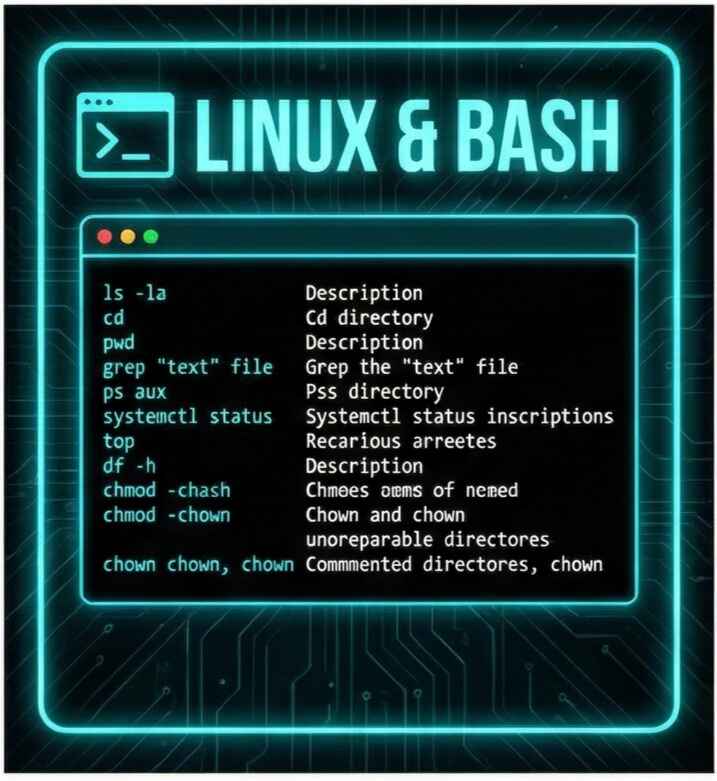
You start by navigating the system:
pwd
ls
cd /path/to/directory
Creating and managing files is routine work:
touch app.log
mkdir logs
cp config.yml /backup/
mv old.txt new.txt
rm -rf temp/
Permissions cause more production issues than most people admit. These commands fix that:
chmod 755 deploy.sh
chown user:group file.txt
When troubleshooting, searching and inspecting files becomes critical:
grep "ERROR" app.log
less app.log
head -n 20 app.log
tail -f app.log
System health checks are part of daily operations:
top
htop
df -h
free -m
uptime
These commands help you answer one key question: Is the system stable right now?
Git Commands: Managing Code Without Chaos
Git is how teams collaborate without overwriting each other’s work.
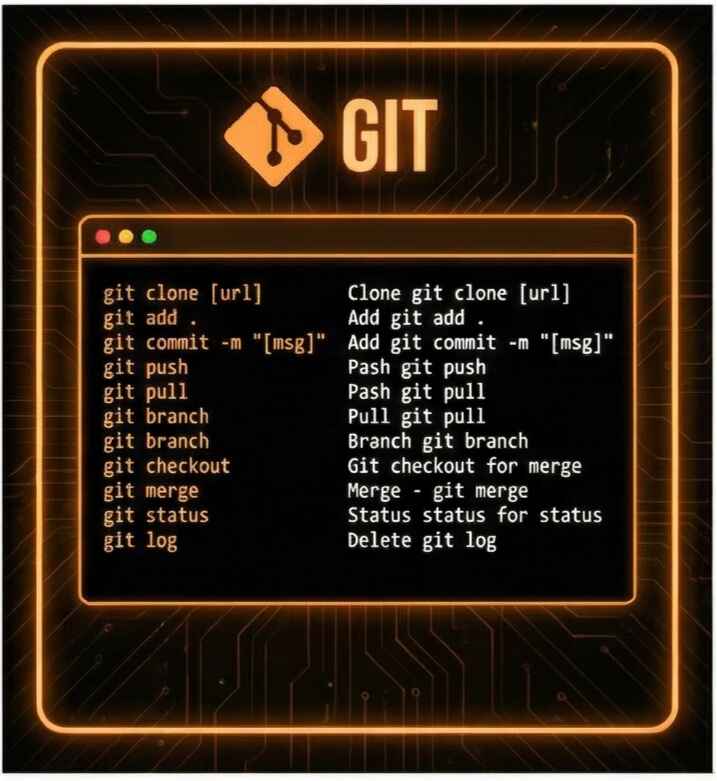
Basic workflow starts here:
git init
git clone https://github.com/user/repo.git
git status
git add .
git commit -m "Initial commit"
Branching keeps features isolated and safe:
git branch feature-login
git checkout feature-login
git merge feature-login
git rebase main
When mistakes happen (they always do), Git gives you recovery tools:
git stash
git stash pop
git reset HEAD file.txt
git cherry-pick <commit-hash>
For debugging production issues, history matters:
git log
git blame file.txt
git bisect
Git doesn’t just store code — it stores decisions.
Docker Commands: Running Apps Anywhere
Docker makes applications portable and predictable.
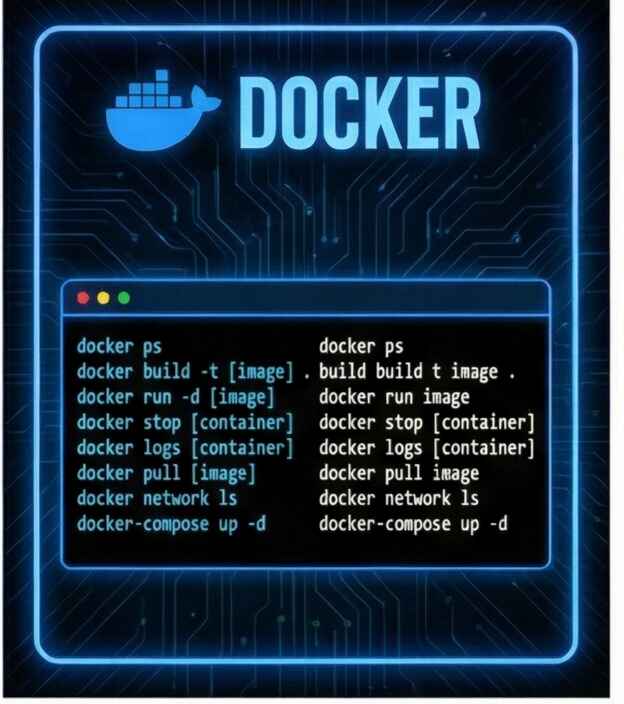
Checking Docker itself:
docker --version
docker info
Working with images and containers:
docker pull nginx
docker images
docker run -d -p 80:80 nginx
docker ps
docker ps -a
Managing container lifecycle:
docker stop container_name
docker start container_name
docker rm container_name
docker rmi image_name
Debugging inside a running container:
docker logs container_name
docker exec -it container_name bash
For multi-container setups, Docker Compose simplifies everything:
docker-compose up
docker-compose down
docker-compose logs
Docker removes the phrase: “But it works on my machine.”
Kubernetes Commands: Operating at Scale
Kubernetes handles deployment, scaling, and recovery — but only if you know how to talk to it.
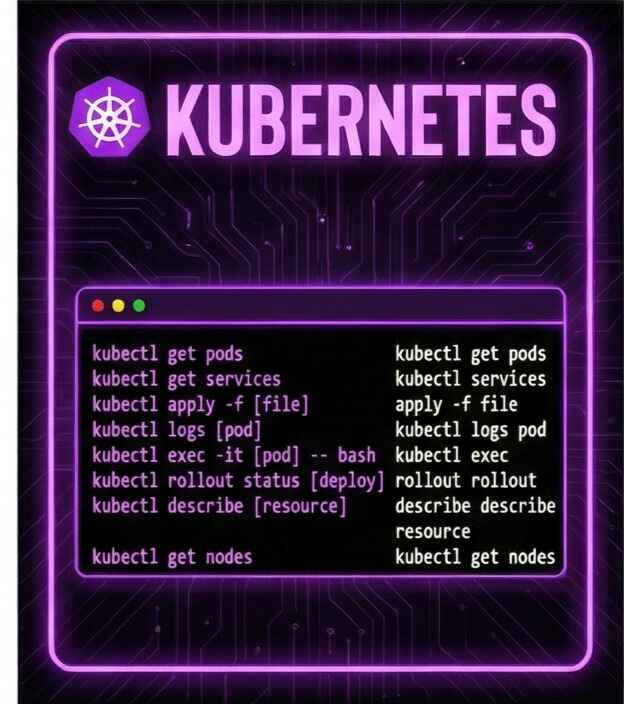
Checking cluster and workloads:
kubectl cluster-info
kubectl get nodes
kubectl get pods
kubectl get services
Inspecting and debugging:
kubectl describe pod pod-name
kubectl logs pod-name
kubectl exec -it pod-name -- /bin/bash
Deploying and updating applications:
kubectl apply -f deployment.yaml
kubectl delete -f deployment.yaml
kubectl scale deployment my-app --replicas=3
Handling rollouts and failures safely:
kubectl rollout status deployment/my-app
kubectl rollout undo deployment/my-app
Cluster maintenance commands used in production:
kubectl cordon node-name
kubectl drain node-name --ignore-daemonsets
kubectl uncordon node-name
Kubernetes is powerful — but only when used deliberately.
Helm Commands: Simplifying Kubernetes Deployments
Helm turns complex Kubernetes YAML into manageable packages.
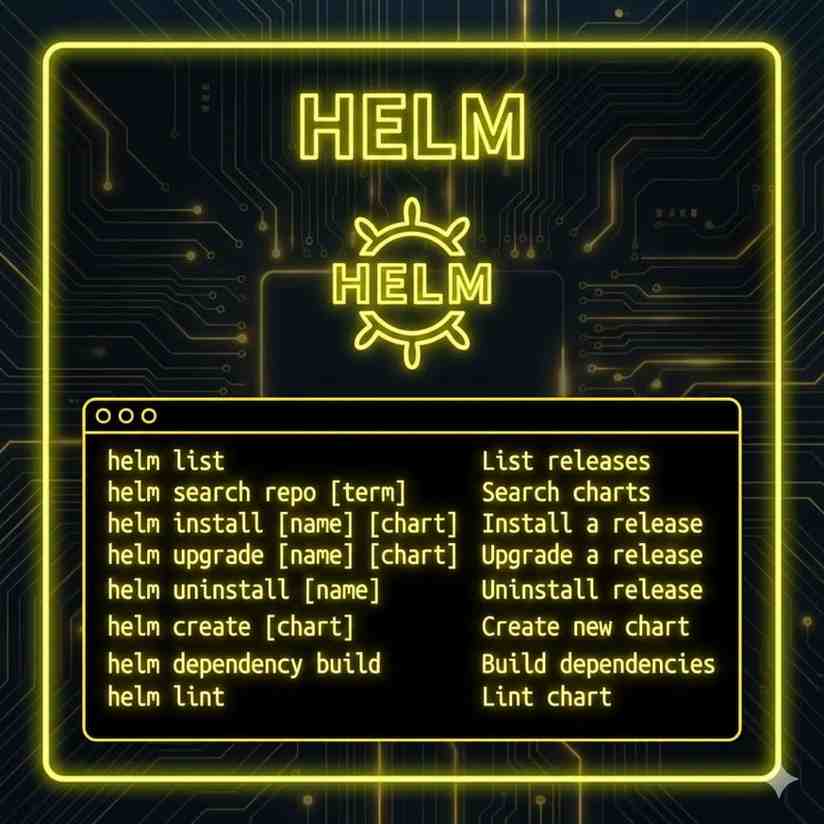
Basic Helm usage:
helm version
helm repo add stable https://charts.helm.sh/stable
helm repo update
helm search repo nginx
Installing and upgrading applications:
helm install my-release stable/nginx
helm upgrade my-release stable/nginx
helm uninstall my-release
Debugging before deployment:
helm template my-release ./my-chart
helm install my-release ./my-chart --dry-run --debug
Helm helps teams move fast without breaking clusters.
Terraform Commands: Infrastructure as Code
Terraform lets you build infrastructure the same way you build software.
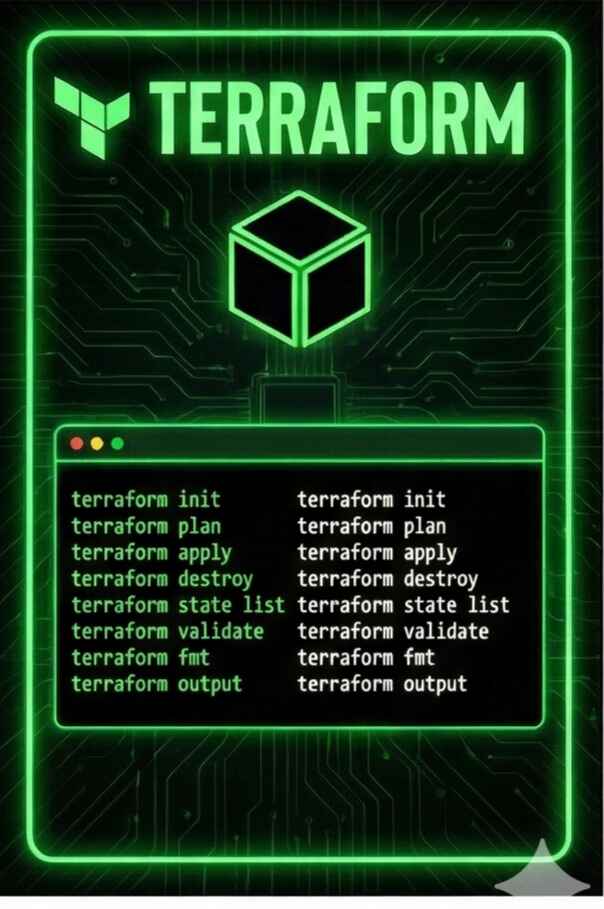
Core workflow:
terraform init
terraform validate
terraform plan
terraform apply
Inspecting and managing state:
terraform show
terraform state list
terraform refresh
Cleaning up infrastructure safely:
terraform destroy
Advanced operations:
terraform import
terraform taint
terraform graph
AWS CLI Commands: Managing Cloud from the Terminal
For many DevOps engineers, AWS is the default cloud — and the AWS CLI is often faster and safer than clicking around the console. It allows you to manage infrastructure, inspect resources, and automate workflows directly from the terminal.
Before anything else, you usually confirm access and identity:
aws configure
aws sts get-caller-identity
These commands ensure you’re working in the right account — a small step that prevents very big mistakes.
Listing and inspecting resources is everyday work:
aws ec2 describe-instances
aws s3 ls
aws s3 ls s3://my-bucket
Uploading and downloading data from S3 is extremely common in CI/CD pipelines:
aws s3 cp file.zip s3://my-bucket/
aws s3 sync ./build s3://my-bucket/build
For infrastructure and deployment workflows, you often interact with services like ECS, ECR, and CloudWatch:
aws ecr describe-repositories
aws ecs list-clusters
aws logs describe-log-groups
The AWS CLI becomes especially powerful when combined with scripts and pipelines — turning cloud operations into repeatable, auditable actions.
Jenkins: Automating Builds, Tests, and Deployments
Jenkins is still one of the most widely used CI/CD tools in the DevOps world. While most interaction happens through pipelines, the Jenkins CLI and pipeline syntax are essential to understand.
A typical Jenkins pipeline starts by defining stages such as build, test, and deploy:
pipeline {
  agent any
  stages {
    stage('Build') {
      steps {
        sh 'mvn clean package'
      }
    }
    stage('Test') {
      steps {
        sh 'mvn test'
      }
    }
    stage('Deploy') {
      steps {
        sh './deploy.sh'
      }
    }
  }
}
From the command line, Jenkins jobs can be triggered remotely:
java -jar jenkins-cli.jar -s http://jenkins-server/ build my-job
Checking job status and logs helps when debugging failed pipelines:
java -jar jenkins-cli.jar -s http://jenkins-server/ console my-job
Jenkins shines when integrated with Git, Docker, Kubernetes, and AWS — acting as the glue that connects code changes to production deployments.
Despite newer tools entering the space, Jenkins remains a core skill for many DevOps roles because of its flexibility and massive ecosystem.
Free DevOps Commands Cheat Sheet (PDF Download)
If you don’t want to memorize everything, that’s normal.
You can download the complete DevOps commands cheat sheet PDF for free, which includes:
- Linux commands
- Git commands
- Docker commands
- Kubernetes commands
- Helm commands
- Terraform commands
Download DevOps Commands Cheat Sheet PDF
Conclusion
DevOps is not about knowing more commands — it’s about using the right ones calmly under pressure.
Keep the downloaded PDF nearby. Practice daily. Focus on understanding systems, not just syntax. That’s how DevOps becomes second nature.