

Hi Guys, Welcome to Proto Coders Point. In this flutter tutorial article, will explore how to pick files in flutter app.
File Picking in native platform like android & iOS is quite easy, but is even easier in flutter by using packages like file_picker.
So this flutter article is all about picking different types of files like Image, Video, Audio, pdf, doc etc.
Flutter File_Picker package
This package is very easily to use to pick file from native file explorer, it allows you to use file explorer of native platform to pick files , if support single & multiple file picking & also extension filtering is supported in selecting files.
Feature of file_picker
- Invoke native platform OS picker to pick different types of files.
- Developer can list type of extension a user can pick Eg: jpg, png, pdf etc.
- Single and multiple file picks possible.
- file type filtering (media,image,video, all type).
for more here.
Let’s Get Started with implementing file_picker in flutter app
Step 1: Create a flutter project & all file_picker dependencies
Create a new flutter project in your favourite IDE & add flutter picker package
open pubspec.yaml file & add file_picker
dependencies:
  file_picker:
then hit pub get or run flutter pub get command to download the package into your flutter project.
Step 2: import file_picker.dart
once you have added the dependencies package succesfully, to use file_picker you need to import it wherever required.
import 'package:file_picker/file_picker.dart';
Now, you can easily pick files in flutter app.
Properties of PickFiles class
| Properties | Description |
| dialogTitle: | Gives a Title to picker dialog |
| type: | Define type of file to pick Eg: FileType.any FileType.image FileType.video FileType.audio FileType.custom [ should define allowedExtensions ] |
| allowedExtensions: [….] | Allow only specific extensions file to be picker Eg: allowedExtensions: [‘jpg’, ‘pdf’, ‘png’], |
| allowMultiple: true/false | allow Multiple files can be picked. |
Pick Single File
If you want to pick single file in flutter, use below code
FilePickerResult? result = await FilePicker.platform.pickFiles();
if (result == null) return;  // if user don't pick any thing then do nothing just return.

PlatformFile file = result!.files.first;
//now do something with file selected
Multiple file picking in flutter
Then, if you want to pick more then one file at once(multiple file picking), use below code.
 FilePickerResult? result = await FilePicker.platform.pickFiles(allowMultiple: true);
 if (result == null) return;

 List<File> files = result!.paths.map((path) => File(path!)).toList();
// now do something with list of files selected/picked by a user
The files picked by a user is stored in List<File> array.
Pick particular type of file extensions
Sometimes, you want a user to only pick a particular type of file extensions, say jpg, png, pdf, doc etc in that case we can use 2 properties in pickFiles() class i.e
type: FileType.custom,
allowedExtensions: ['png','doc','pdf']
FilePickerResult? result = await FilePicker.platform.pickFiles(type: FileType.custom,allowedExtensions: ['jpg','pdf']);
if (result == null) return;

PlatformFile file1 = result1!.files.first;
Now, native file explorer will only show the file with defined extensions
Get Full Details of picked file in flutter
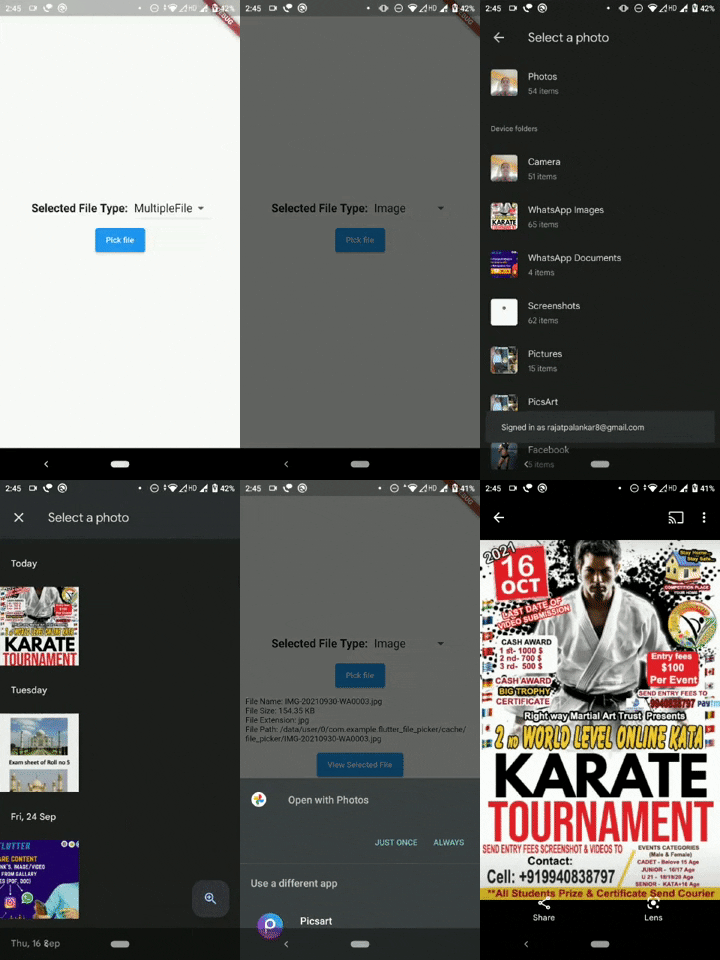
So, now you have picked files using filepicker & now you want to read the details of file like name of file, size of file, type of file(extensions) & path of selected file. below is the code
FilePickerResult? result = await FilePicker.platform.pickFiles();
if (result == null) return;


       PlatformFile file = result!.files.first;

       print('File Name: ${file?.name}');
       print('File Size: ${file?.size}');
       print('File Extension: ${file?.extension}');
       print('File Path: ${file?.path}');
Complete Source Code – Full File_Picker example in flutter
Note: I am using OpenFile package to open the user selected or picked file
main.dart
import 'dart:io';

import 'package:file_picker/file_picker.dart';
import 'package:flutter/cupertino.dart';
import 'package:flutter/material.dart';
import 'package:flutter_file_picker/file_list.dart';
import 'package:open_file/open_file.dart';

void main() {
  runApp(const MyApp());
}

class MyApp extends StatelessWidget {
  const MyApp({Key? key}) : super(key: key);

  // This widget is the root of your application.
  @override
  Widget build(BuildContext context) {
    return MaterialApp(
      title: 'Flutter Demo',
      theme: ThemeData(
        primarySwatch: Colors.blue,
      ),
      home: const MyHomePage(),
    );
  }
}

class MyHomePage extends StatefulWidget {
  const MyHomePage({Key? key}) : super(key: key);

  @override
  _MyHomePageState createState() => _MyHomePageState();
}

class _MyHomePageState extends State<MyHomePage> {
  String fileType = 'All';
  var fileTypeList = ['All', 'Image', 'Video', 'Audio','MultipleFile'];

  FilePickerResult? result;
  PlatformFile? file;

  @override
  Widget build(BuildContext context) {
    return Scaffold(
      body: Center(
        child: Column(
          mainAxisAlignment: MainAxisAlignment.center,
          children: [
            Row(
              mainAxisAlignment: MainAxisAlignment.center,
              children: [
                const Text(
                  'Selected File Type:  ',
                  style: TextStyle(fontWeight: FontWeight.bold, fontSize: 20),
                ),
                DropdownButton(
                  value: fileType,
                  items: fileTypeList.map((String type) {
                    return DropdownMenuItem(
                        value: type,
                        child: Text(
                          type,
                          style: TextStyle(fontSize: 20),
                        ));
                  }).toList(),
                  onChanged: (String? value) {
                    setState(() {
                      fileType = value!;
                      file = null;
                    });
                  },
                ),
              ],
            ),
            ElevatedButton(
              onPressed: () async {
                pickFiles(fileType);
              },
              child: Text('Pick file'),
            ),
            if (file != null) fileDetails(file!),
            if (file != null) ElevatedButton(onPressed: (){viewFile(file!);},child: Text('View Selected File'),)
          ],
        ),
      ),
    );
  }

  Widget fileDetails(PlatformFile file){
    final kb = file.size / 1024;
    final mb = kb / 1024;
    final size  = (mb>=1)?'${mb.toStringAsFixed(2)} MB' : '${kb.toStringAsFixed(2)} KB';
    return Padding(
      padding: const EdgeInsets.all(8.0),
      child: Column(
        crossAxisAlignment: CrossAxisAlignment.start,
        children: [
          Text('File Name: ${file.name}'),
          Text('File Size: $size'),
          Text('File Extension: ${file.extension}'),
          Text('File Path: ${file.path}'),
        ],
      ),
    );

  }

  void pickFiles(String? filetype) async {
    switch (filetype) {
      case 'Image':
        result = await FilePicker.platform.pickFiles(type: FileType.image);
        if (result == null) return;
        file = result!.files.first;
        setState(() {});
        break;
      case 'Video':
        result = await FilePicker.platform.pickFiles(type: FileType.video);
        if (result == null) return;
        file = result!.files.first;
        setState(() {});
        break;

      case 'Audio':
        result = await FilePicker.platform.pickFiles(type: FileType.audio);
        if (result == null) return;
        file = result!.files.first;
        setState(() {});
        break;
      case 'All':
        result = await FilePicker.platform.pickFiles();
        if (result == null) return;
        file = result!.files.first;
        setState(() {});
        break;
      case 'MultipleFile':
        result = await FilePicker.platform.pickFiles(allowMultiple: true);
        if (result == null) return;
        loadSelectedFiles(result!.files);
        break;
    }
  }

  // multiple file selected
  // navigate user to 2nd screen to show selected files
  void loadSelectedFiles(List<PlatformFile> files){
    Navigator.of(context).push(
      MaterialPageRoute(builder: (context) => FileList(files: files, onOpenedFile:viewFile ))
    );
  }

  // open the picked file
  void viewFile(PlatformFile file) {
    OpenFile.open(file.path);
  }
}
file_list.dart
show list of user selected file in listview.
import 'dart:io';

import 'package:flutter/material.dart';
import 'package:file_picker/file_picker.dart';

class FileList extends StatefulWidget {
  final List<PlatformFile> files;
  final ValueChanged<PlatformFile> onOpenedFile;

  const FileList({Key? key, required this.files, required this.onOpenedFile})
      : super(key: key);

  @override
  _FileListState createState() => _FileListState();
}

class _FileListState extends State<FileList> {
  @override
  Widget build(BuildContext context) {
    return Scaffold(
      appBar: AppBar(
        centerTitle: true,
        title: Text('Selected Files'),
      ),
      body: ListView.builder(
          itemCount: widget.files.length,
          itemBuilder: (context, index) {
            final file = widget.files[index];

            return buildFile(file);
          }),
    );
  }

  Widget buildFile(PlatformFile file) {
    final kb = file.size / 1024;
    final mb = kb / 1024;
    final size = (mb >= 1)
        ? '${mb.toStringAsFixed(2)} MB'
        : '${kb.toStringAsFixed(2)} KB';
    return InkWell(
      onTap: () => widget.onOpenedFile(file),
      child: ListTile(
        leading: (file.extension == 'jpg' || file.extension == 'png')
            ? Image.file(
                File(file.path.toString()),
                width: 80,
                height: 80,
              )
            : Container(
                width: 80,
                height: 80,
              ),
        title: Text('${file.name}'),
        subtitle: Text('${file.extension}'),
        trailing: Text(
          '$size',
          style: TextStyle(fontWeight: FontWeight.w700),
        ),
      ),
    );
  }
}
Output